
When you work closely with Icinga Web 2, developing modules, building dashboards, poking around the internals, you naturally pick up on features that most users never think about. Some are usability improvements that deserve more attention than they get. Others are developer conveniences that turn out to be genuinely useful in the right user situation too. They’re just the kind of thing that rarely makes it into the getting-started guide.
Not all of these will apply to your daily workflow. But when the right situation comes up, it’s good to know they’re available and built into every Icinga Web 2 installation.
Keyboard Navigation: Built for Usability, Useful for Everyone
Icinga Web 2 is fully navigable by keyboard, primarily an accessibility feature, but one that’s genuinely useful for anyone once you know how the tab order works
Press Tab on any page and you’ll cycle through elements in this order (starting from page load):
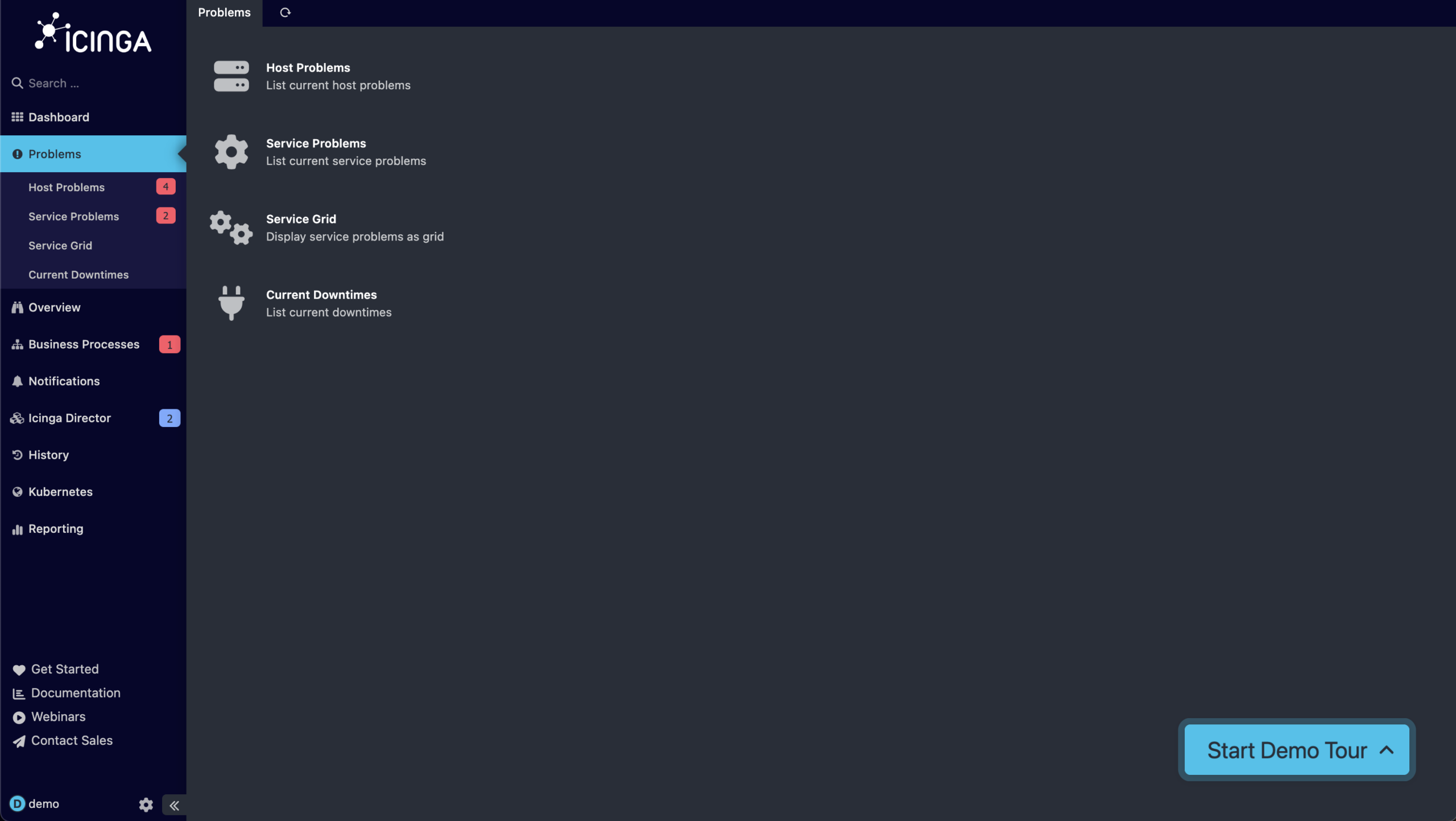
(the count of tab presses is equal to the number of the step/screenshots)
- The Icinga logo in the top-left corner, which is a link back to the dashboard overview
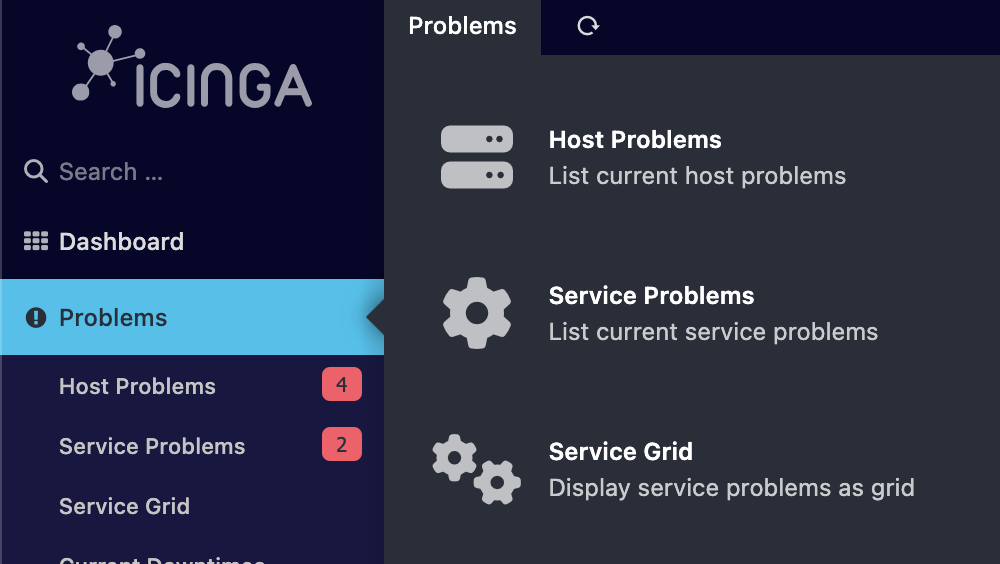
- “Skip to content” : Invisible until it receives focus, then it jumps you past the navigation directly into the page content
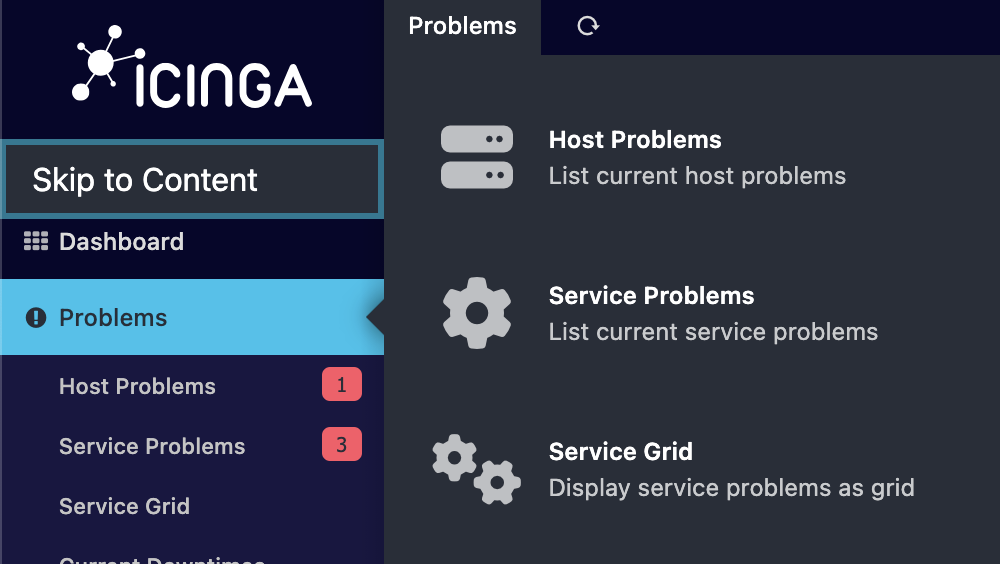
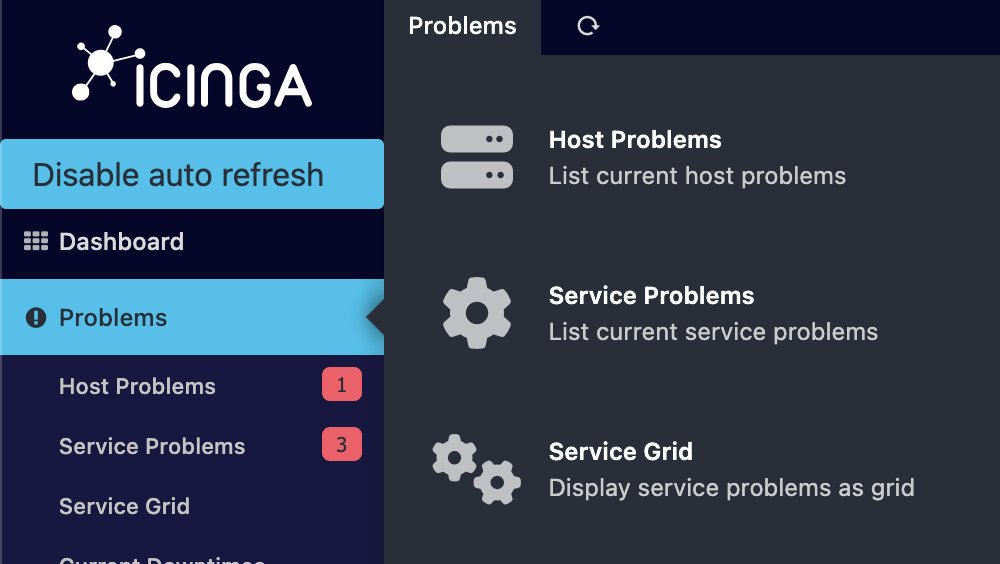
- “Disable autorefresh” : Also invisible until focused; pressing Enter toggles the autorefresh state without touching the mouse
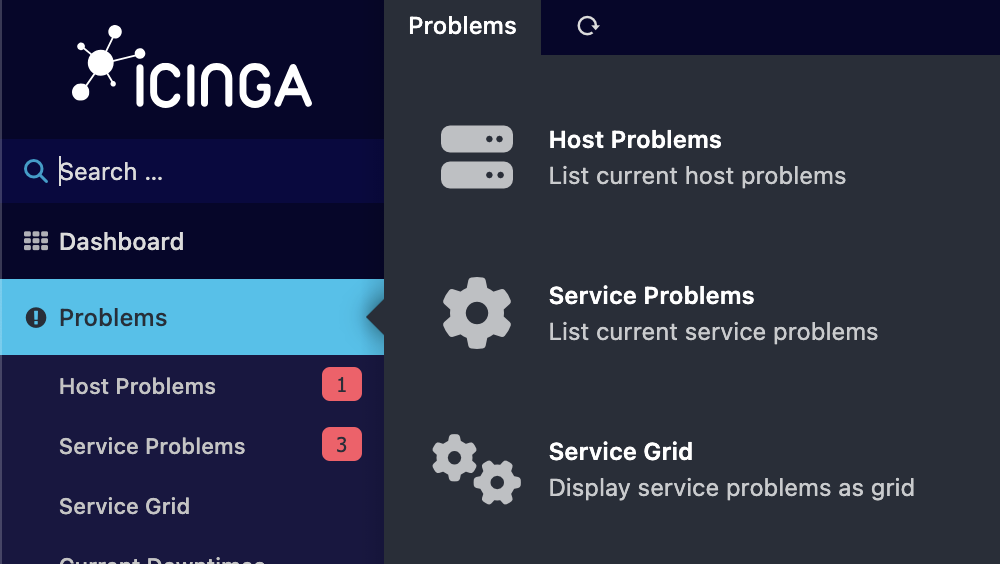
- The search bar in the sidebar
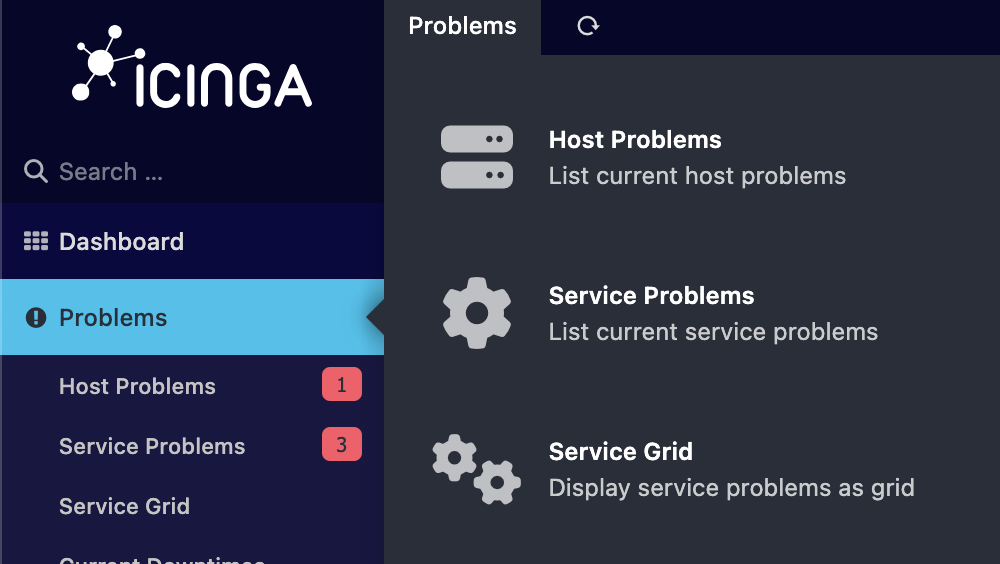
- The sidebar navigation items
- The page content itself (after tabbing through all navigation items)
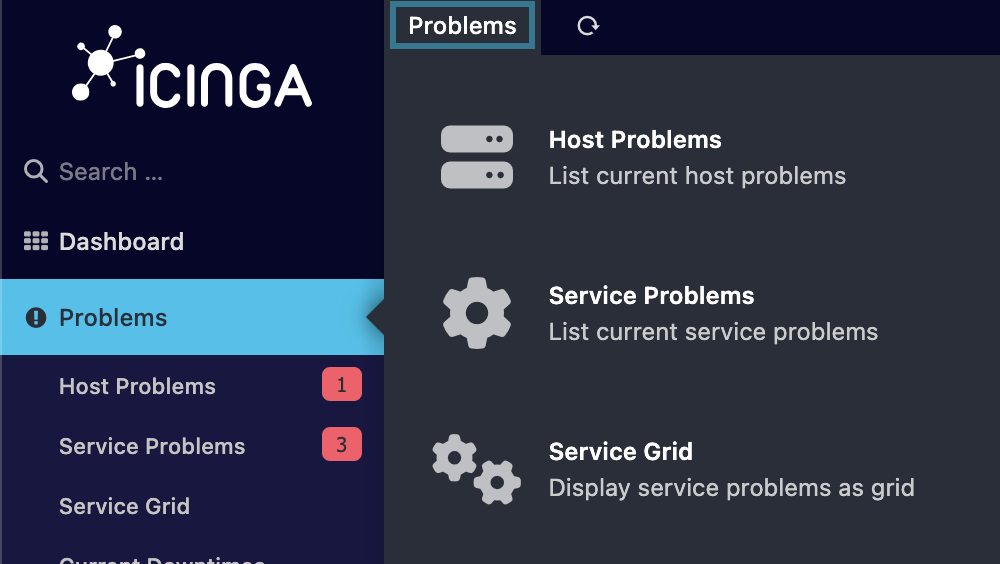
The second and third items are what make this interesting. “Skip to content” and “Disable autorefresh” are accessibility-first controls that only appear when they have keyboard focus; they’re visually hidden in normal use. If you’re on a page with a lot going on and just want to quickly pause the constant refreshing, a few Tab presses from anywhere on the page gets you there.
There’s also a small nuance worth knowing: if you click a link in the sidebar navigation rather than loading the page fresh, the next tab press doesn’t land on the logo. It lands on “Skip to content” and focus is placed at the beginning of the new content area, not at the top of the page. This is intentional accessibility behavior, and it means your keyboard position stays relevant even as you navigate around.
Multi-Select: Building a Summary View On the Fly
In the IcingaDB hosts and services list views, you can select multiple entries at once.
- Hold Cmd (macOS) or Ctrl (Windows/Linux) and click individual rows to add them to your selection one at a time
- Hold Shift and click to select everything between your last click and the current one, a range select
As you select entries, Icinga Web 2 opens a second column showing a combined summary of all selected entities. You can see their states, check results, and available actions aggregated in one place without leaving the list view.
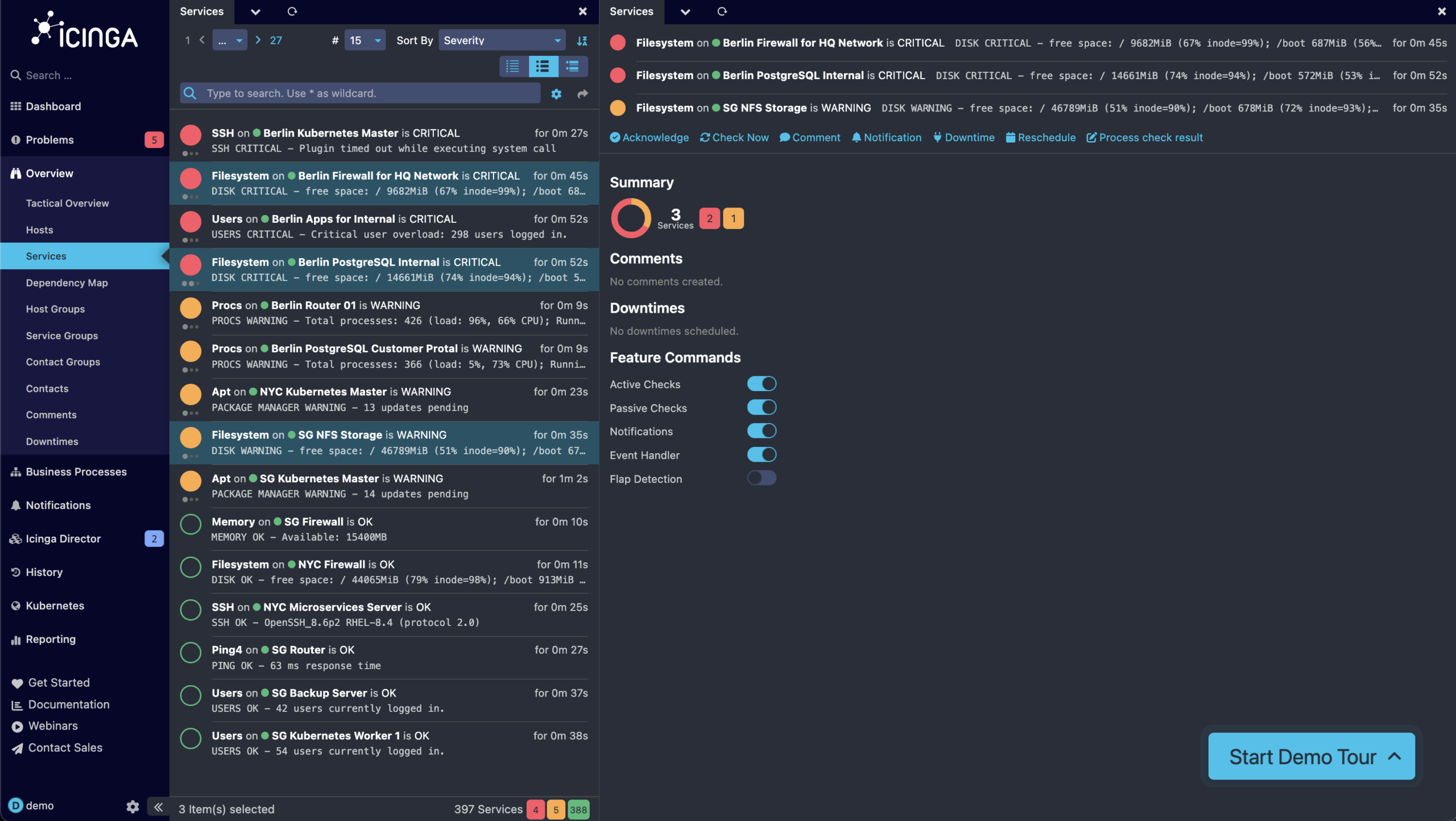
This is actually the same result you’d get from searching for those entities by filter and clicking the “Show bulk processing actions for all filtered results” arrow button next to the search bar. The multi-select shortcut just gets you there without building a filter expression first.
The practical value shows up fast during incidents. If five of your database hosts are throwing errors and you want to bulk-acknowledge them, select them all with a few Shift+clicks and trigger the acknowledgment from the summary column. No filter writing, no navigating away.
The ?limit= Parameter: Sensible Defaults, Override When Needed
Icinga Web 2’s pagination defaults are designed for everyday use: the settings UI lets you set between 25 and a practical upper limit, which covers the vast majority of workflows. Most of the time, showing 25+ entries per view is exactly right.
But there are edge cases where fewer is exactly what you want. The most common: custom dashboards where you’re stacking multiple different views and only care about the most recent handful of each. Another practical one: taking clean screenshots for documentation … or a blog post like this one.
You can set a lower limit directly via URL parameter:
https://demo.icinga.com/icingadb/hosts?limit=5
The ?limit= GET parameter accepts any positive number, including values below the settings panel’s floor of 25. ?limit=5 shows five entries. ?limit=1 shows one.
This is less of a workaround and more of a developer-level escape hatch. The UI default serves most users well, the URL parameter is there for when your use case doesn’t fit the majority. Add the filter you want, append ?limit=5, and save the URL as a dashboard element.
Split-Pane Views: How IcingaWeb Works, Made Available to You
Every page in Icinga Web 2 can be displayed side-by-side with any other page, and the whole thing fits in a single URL.
The trick is the #! separator. Take two Icinga Web URLs, strip the base URL from the second one, and join them:
| Column Position | URL |
|---|---|
| Left | https://demo.icinga.com/icingadb/hosts |
| Right | https://demo.icinga.com/icingadb/services |
| Combined | https://demo.icinga.com/icingadb/hosts#!/icingadb/services |
The result is a split layout with hosts on the left and services on the right. You can use filters, limit parameters, and any other URL parameters in either half, for example:
https://demo.icinga.com/icingadb/hosts?limit=15#!/icingadb/services?limit=15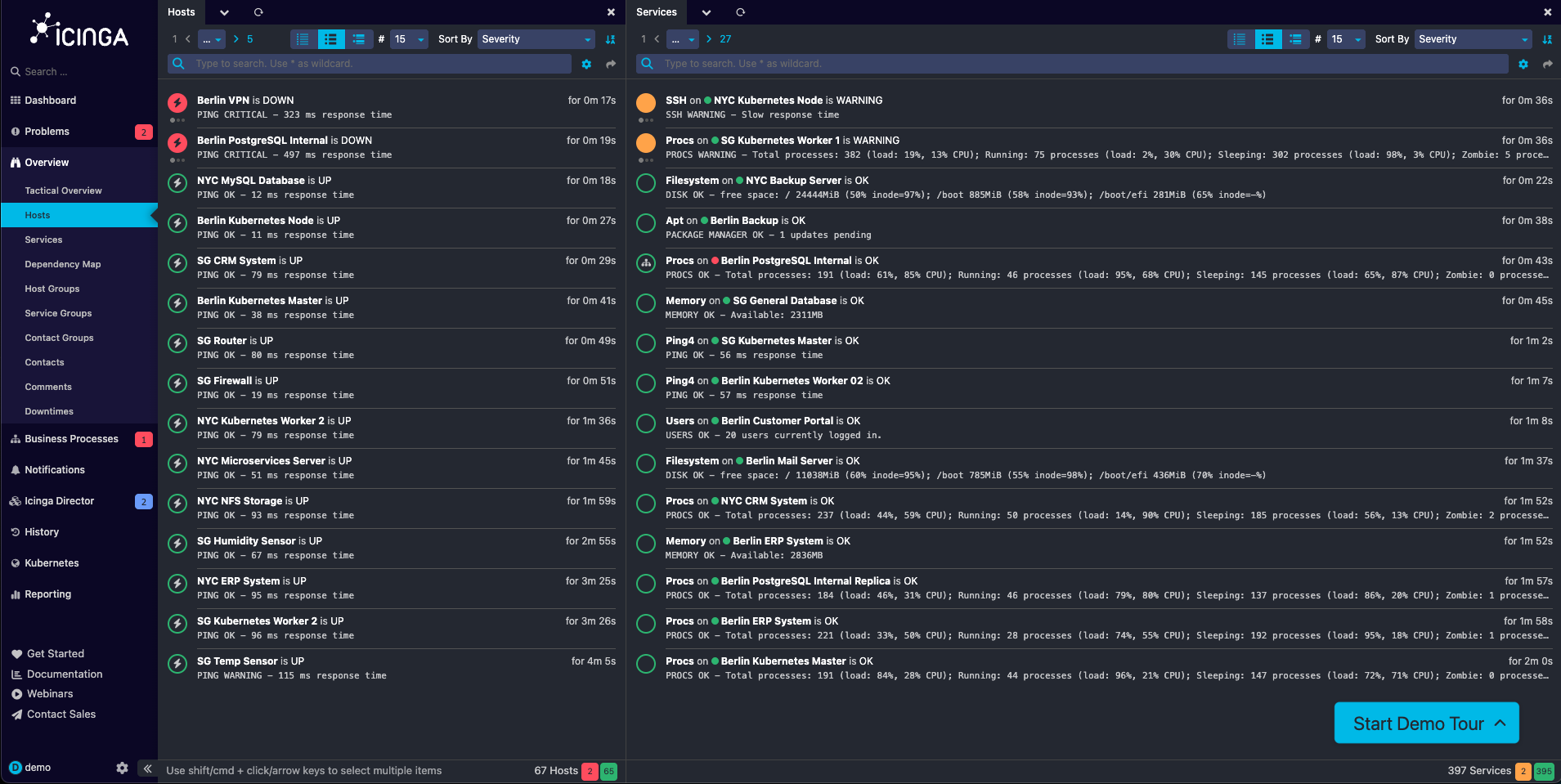
A few things to keep in mind:
- The left column is narrower than the right. Not every combination makes visual sense, but there’s no technical restriction, any two Icinga Web pages can be paired.
- Split views can be saved as menu entries, host actions, service actions, or browser bookmarks, making them reusable without remembering the URL construction.
- The target must be set to “new Window.” This is the critical constraint. If you save a split-pane URL as a menu entry or action with any other target type, it won’t render as a split, the second part of the URL is ignored. New Window is the only target where the
#!routing gets interpreted correctly.
The #! syntax isn’t a workaround or an accident, it’s how Icinga Web 2’s client-side routing distinguishes a “load this alongside the current view” instruction from a regular URL fragment. But you don’t need to understand the internals to use it. Just construct the URL, save it with the right target, and it works every time.
The Right Tool for the Right Situation
Not all four of these come up in typical day-to-day use. Keyboard navigation is a general usability improvement anyone can benefit from. Multi-select is useful whenever you need to act on a group of entities quickly. The ?limit= parameter and split-pane construction are more niche, developer-level conveniences that are just as accessible to any user who knows the pattern.
Now you know the pattern.