We are releasing Icinga TOTP Web v1.0.0, which adds Time-based One-Time Password (TOTP) two-factor authentication to Icinga Web.
What Is Icinga TOTP Web?
Icinga Web’s authentication system supports multiple backends, but until now it lacked a built-in second factor. Icinga TOTP Web fills that gap. It integrates with Icinga Web’s existing two-factor authentication hook and adds a TOTP method that stores secrets in a MySQL or PostgreSQL database.
Users enroll once and then provide a 6-digit token on every subsequent login. The token is generated by any RFC 6238-compatible authenticator app..
Configuration
Database
Icinga TOTP Web stores TOTP secrets in a dedicated MySQL or PostgreSQL database. Set up the database and user, import the schema, then register the connection as a resource in Icinga Web.
Configure the resource via the Icinga Web UI at Configuration → Modules → totp → Database, or create /etc/icingaweb2/modules/totp/config.ini and point the module at an existing resource:
[database]
resource = "totp_mysql"
Module Settings
The issuer name shown in authenticator apps and the accepted clock drift are configurable under Configuration → Modules → totp → TOTP. The default leeway is 10 seconds and can be set anywhere from 0 to 29 seconds. The default issuer is “icingaweb”.
Usage
After enabling the module, users configure their second factor in their account settings under Two-Factor Auth. The two-factor challenge then appears as a dedicated step after every successful password login.
Setting Up TOTP
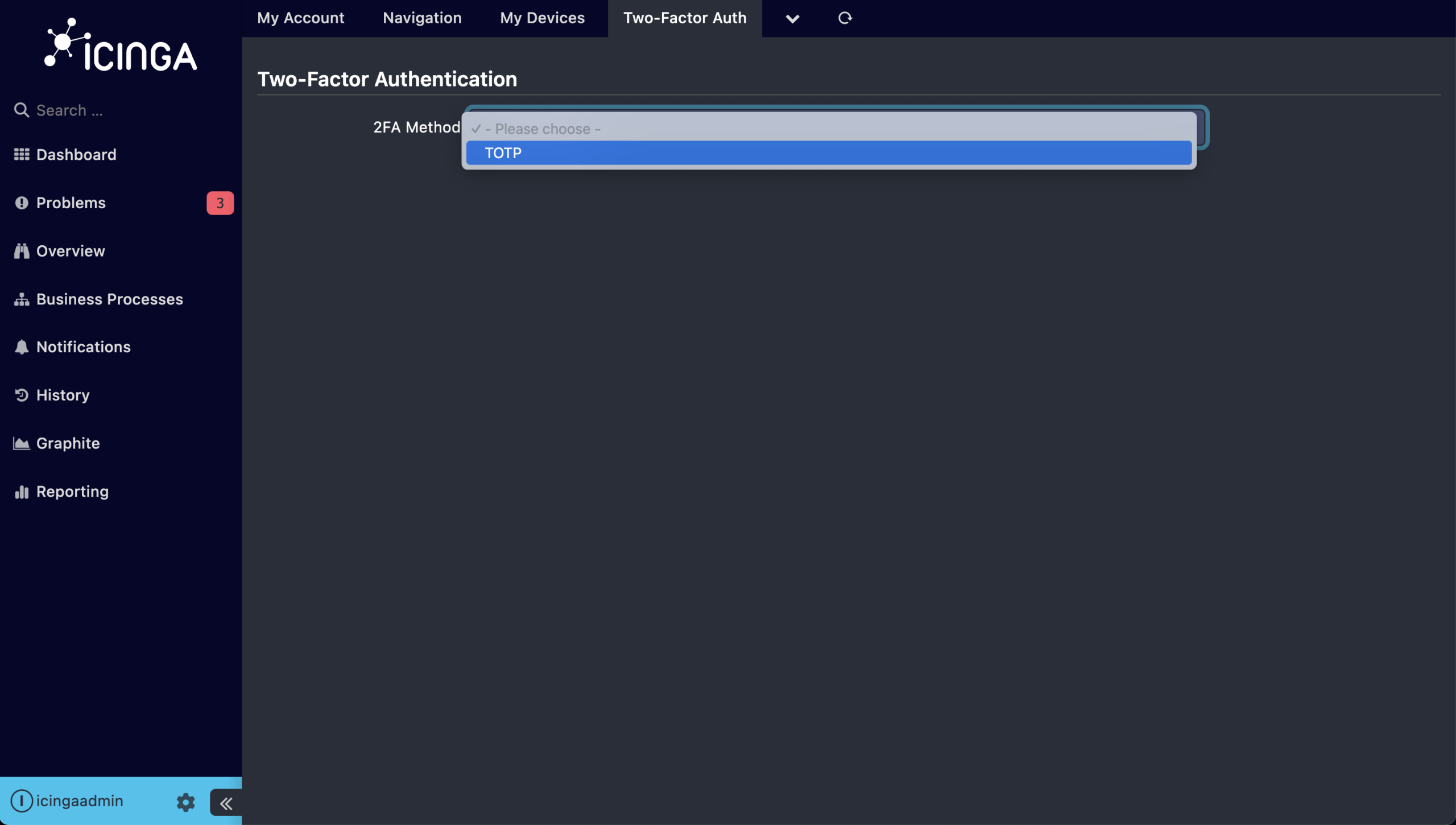
To enroll, users open their account settings and navigate to the Two-Factor Auth tab. They select TOTP from the method dropdown, which expands the enrollment form.
The form shows a QR code that the user scans with any RFC 6238-compatible authenticator app. For users without a camera, the raw secret is also displayed and can be copied to the clipboard for manual entry.
To make sure users do not lose access, the enrollment form also provides:
– A download link for the QR code as an SVG, suitable for offline storage.
– The raw TOTP secret with a copy-to-clipboard button, for manual entry into an authenticator app.
– A warning that prompts users to save the QR code or secret before confirming enrollment.
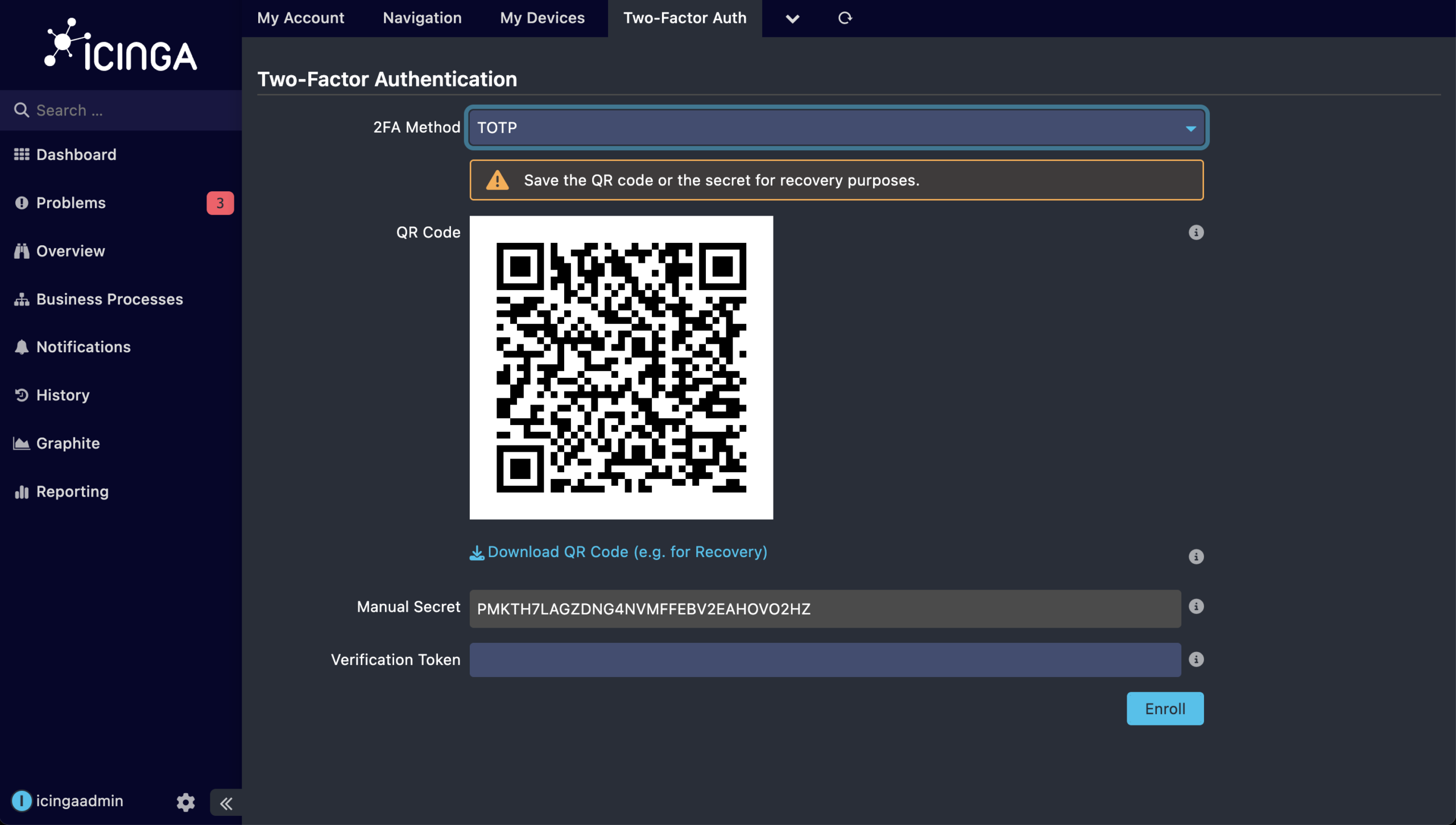
The form also provides a link to download the QR code as an SVG. The download is intended as a backup in case the user loses access to their device.
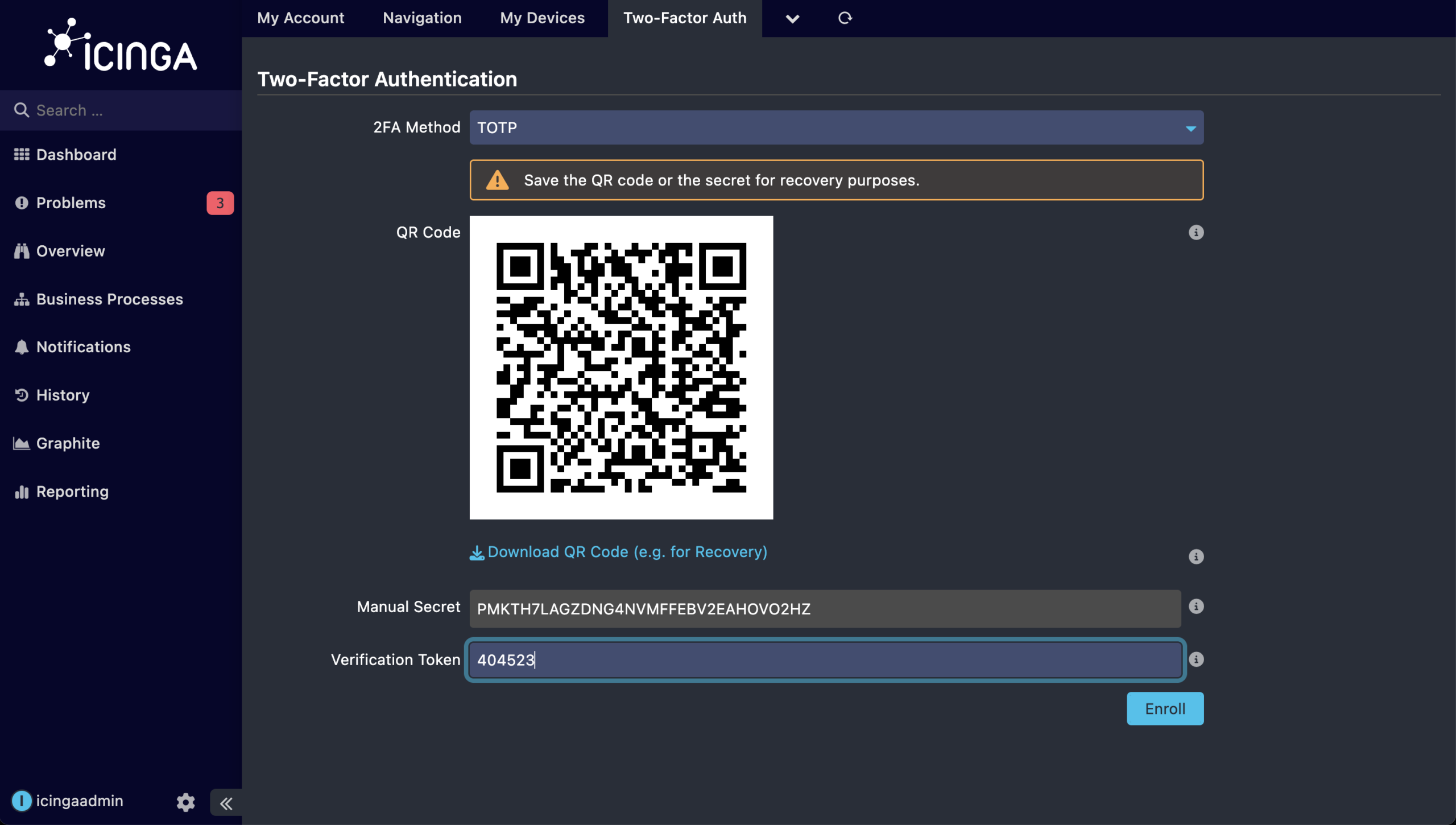
To complete enrollment, users enter a token from the authenticator app into the Verification Token field and click Enroll. The token confirms that the authenticator app was set up correctly. Enrollment is only saved after this check passes.
Logging In
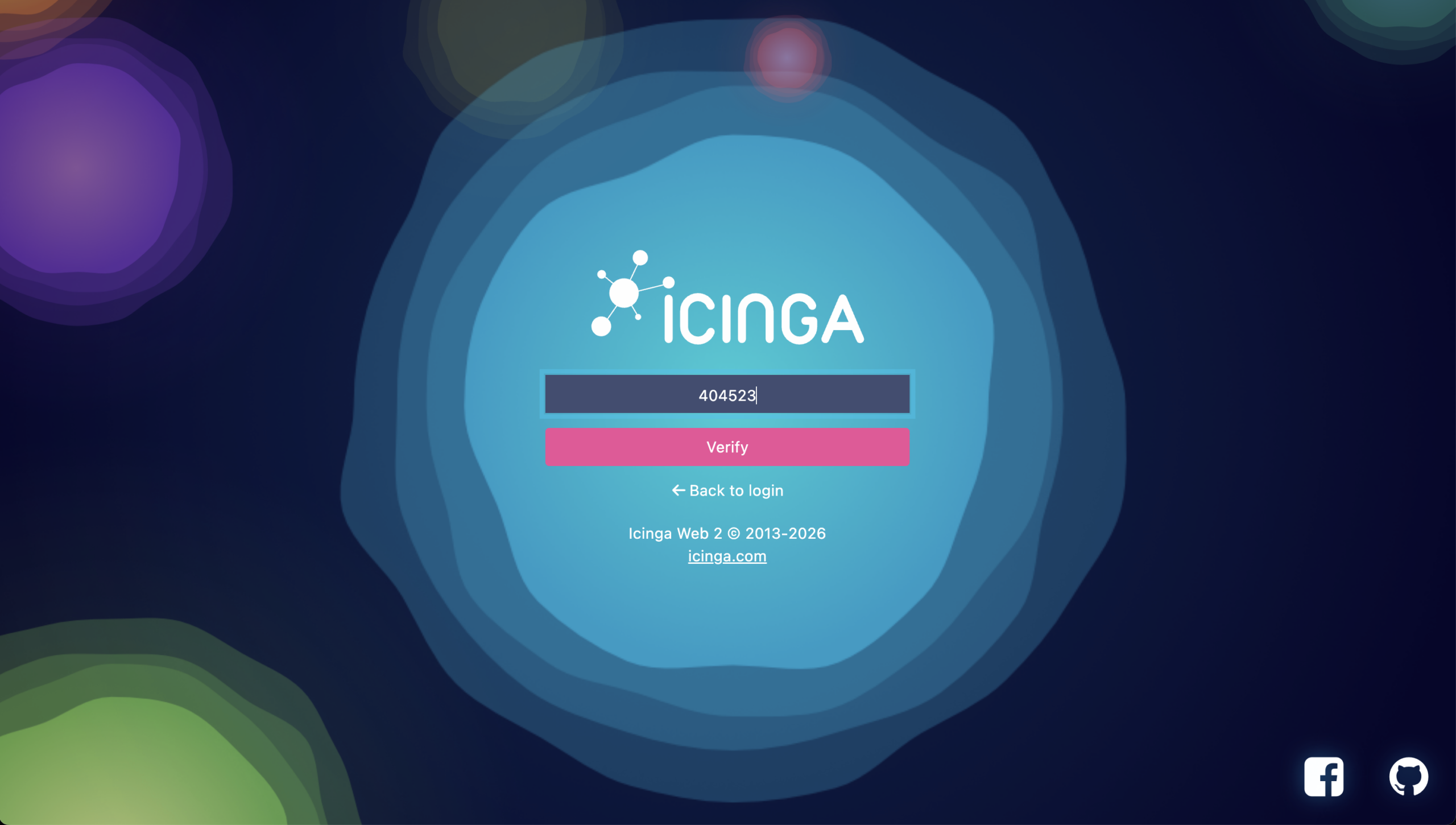
After enrollment, every successful password login is followed by a two-factor challenge. The challenge appears on its own page with a single token input field. Users open their authenticator app, read the current 6-digit token, and enter it to complete the login.
Unenrolling
To remove TOTP from an account, users return to the Two-Factor Auth tab. The current method is shown as read-only and an Unenroll button replaces the enrollment form.
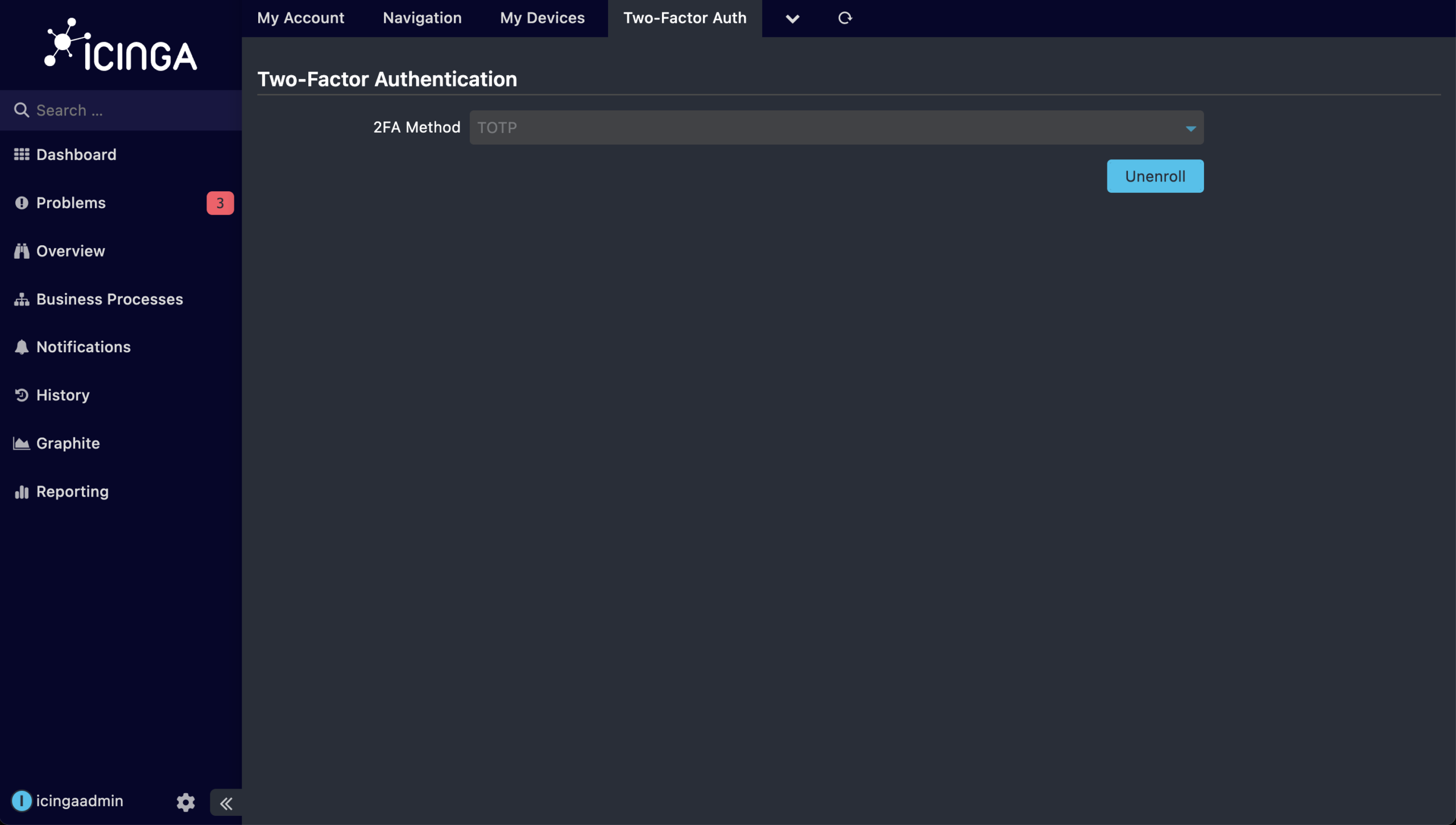
Unenrolling removes the stored secret and revokes all active remember-me cookies for that account.
Getting Started
Install Icinga TOTP Web from the official Icinga package repository:
# Debian / Ubuntu
apt install icinga-totp-web

# RHEL / Fedora
dnf install icinga-totp-web
Full installation and configuration instructions are available in the Icinga TOTP Web documentation.