
A feature that used to work suddenly broke. The problem? There were 300 commits since the last time I knew it worked. Checking each commit manually would take forever.
Fortunately, Git has a tool designed exactly for this situation: git bisect.
What is Git Bisect?
The idea is simple: Binary search through the commit history, dividing the number of possible commits in half at every step.
- 64 commits: about 6 commits to test
- 1,000 commits: about 10 commits to test
- 16,000 commits: about 14 commits to test
How to use Git Bisect
We already know three very important things:
- We have some commit that is already working as expected
- We have later commit that contains a bug
- Somewhere in this list of commits, something changed that caused the bug.
Now we can start the bisecting process:
$ git bisect start
$ git bisect bad # Current version is bad
$ git bisect good v1.2 # v1.2 is known to be good
Bisecting: 8 revisions left to test after this (roughly 3 steps)
# Alternative
git bisect start HEAD v1.2
The visualizations in this article were generated using a small helper script I wrote. It displays a color-coded view of commits during a git bisect session, highlighting the current commit as well as commits marked as good, bad, or skipped. After performing the steps described above, the commit history looks like this:
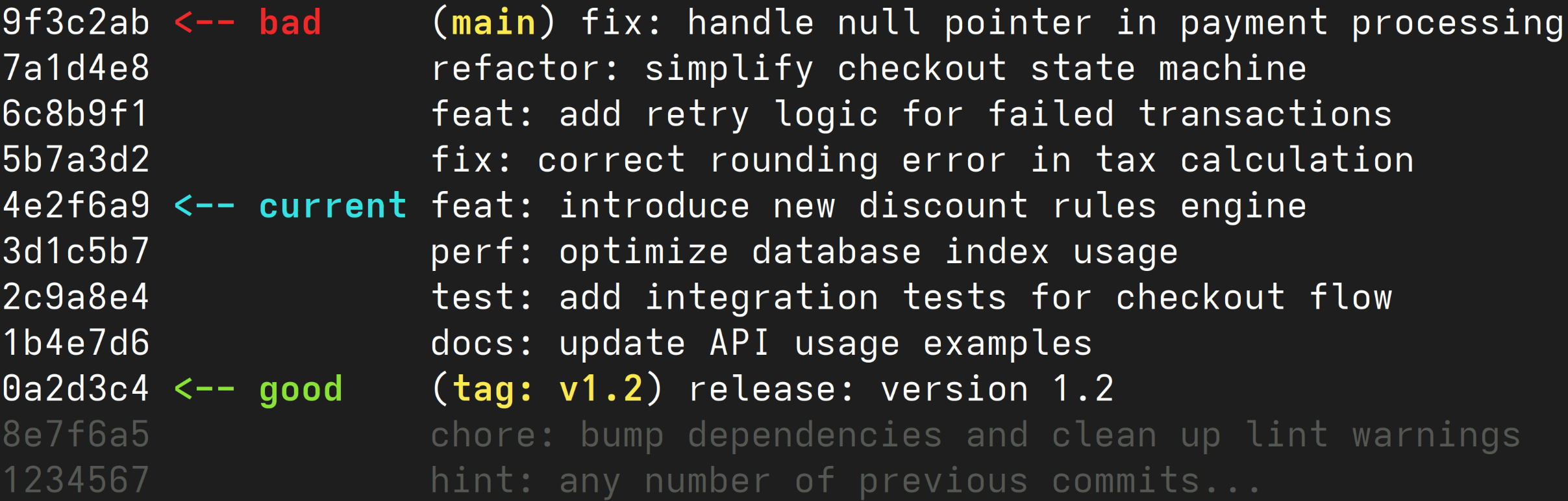
Git automatically checks out a commit that best divides the list in half, in this case 4e2f6a9.
All we have to do is test if the current commit contains the bug or not.
We determine that it doesn’t, so we type git bisect good.
All commits before this one don’t need to be checked, since it can’t contain the bug in question.
Git now does everything for us and the history looks like this.
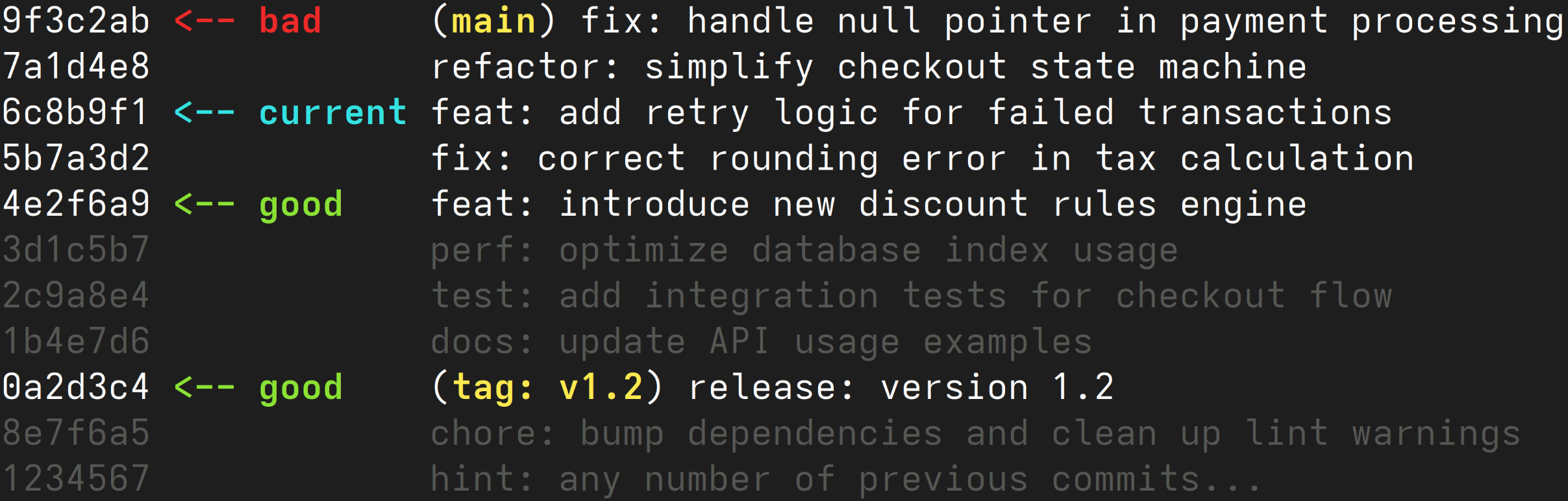
The next commit is automatically checked out and we have to test again.
This time it contains the bug, so we type git bisect bad.
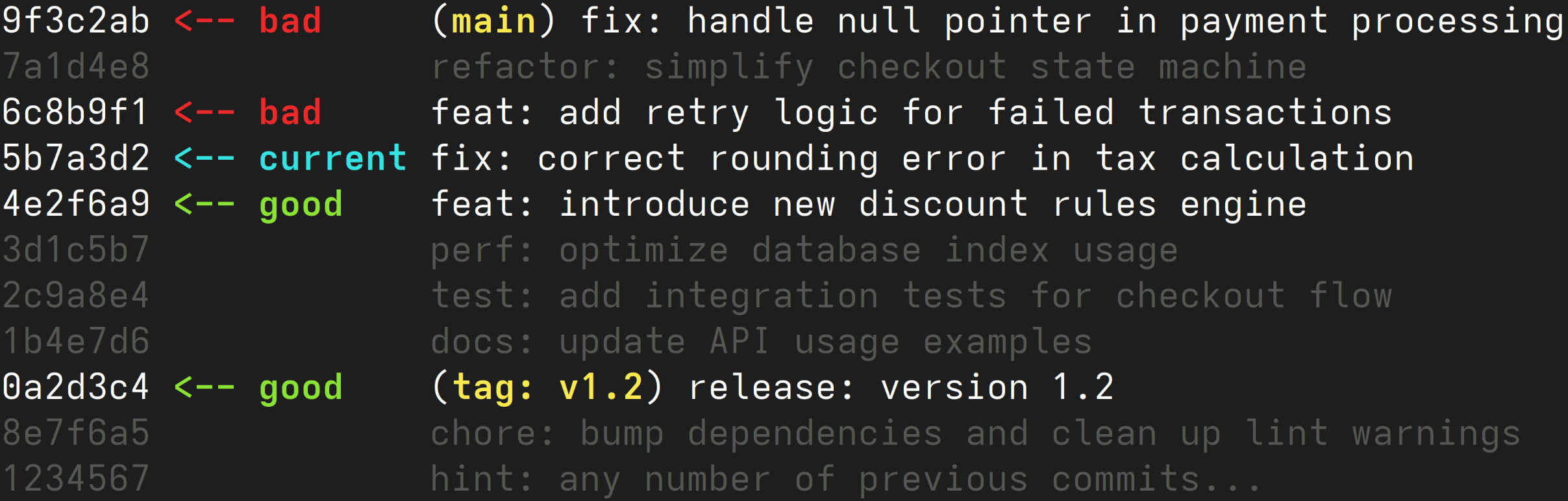
Now there is only one commit left. Git will ask us to test this one as well, in this case it’s a good commit.
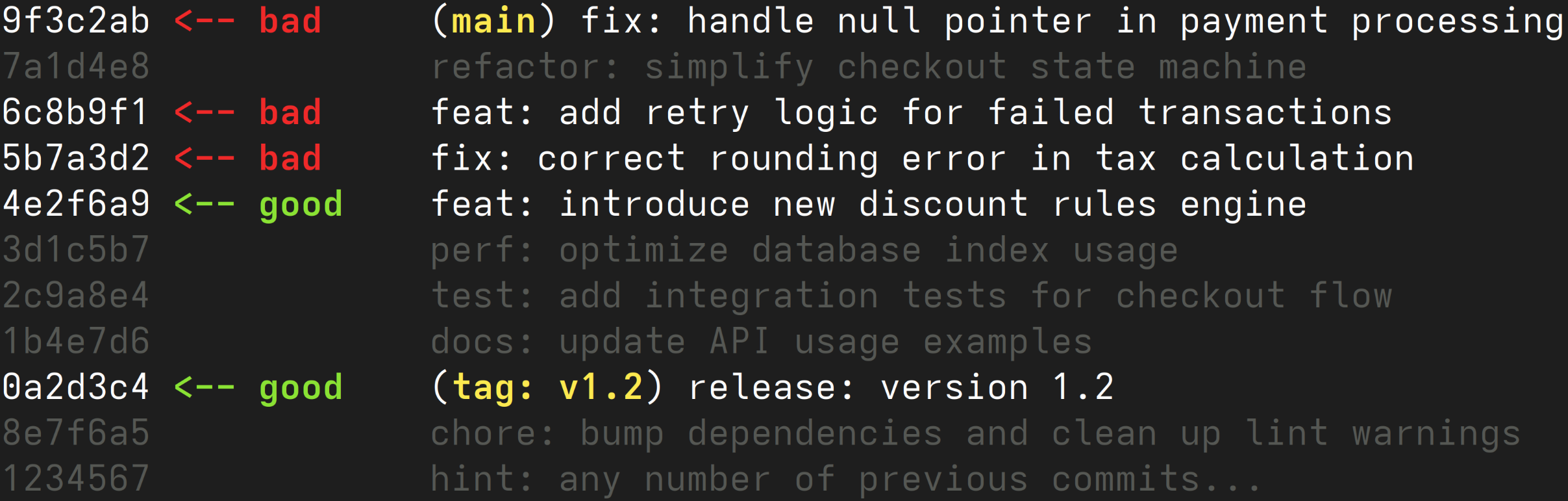
Git has now determined that 5b7a3d2 is the commit that broke the application and automatically sets refs/bisect/bad to point at it.
The following output is displayed in the terminal:
5b7a3d23740ec6921614283a0989fe5040023ecd is the first bad commit

Author: Alexander Rieß <alexander.riess@icinga.com>
Date: Fri Feb 27 09:33:13 2026 +0100

fix: correct rounding error in tax calculation

resolves #17
Skipping Commits You Can’t Test
If you cannot test a commit for any reason, such as a broken build or an unstable state, you can mark it as skipped.
You can simply type git bisect skip.
This tells Git to continue with the next closest commit.
It will still work just fine, but git might be unable to tell you the exact offending commit if it turns out it’s right next to a skipped one.
Let’s imagine that we weren’t able to test commit 5b7a3d2, and we marked it as skipped.
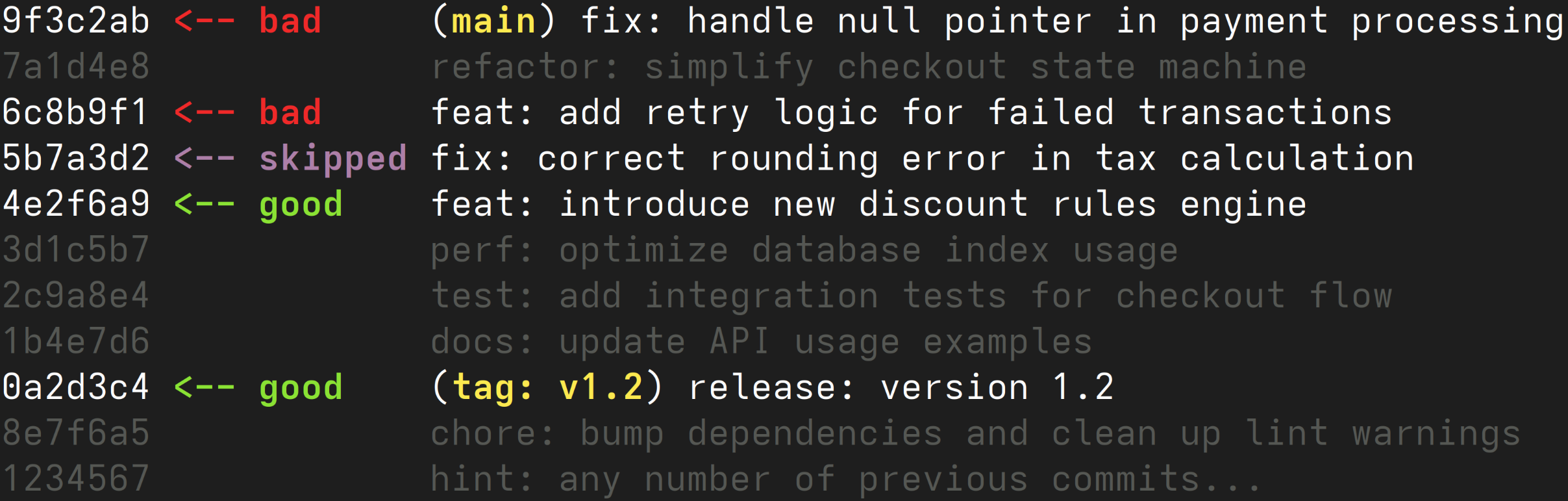
In this case git can’t tell which commit exactly caused the change, so it displays all possible ones.
Automated Testing
In case you have a set of tests that cover your issue, you can run them on each bisected commit and automate the search for the bug.
$ git bisect run test.sh [script_args]
The return code of the script determines the behavior of bisect.
- 0: commit is good
- 125: commit should be skipped
- anything else: commit is bad
$ git bisect start HEAD HEAD~64 -- # culprit is among the last 64
$ git bisect run sh -c "make || exit 125; ~/check_test_case.sh"
$ git bisect reset # quit the bisect session
When was something fixed?
Sometimes it is interesting when a bug was fixed, not just when it broke.
Your first instinct might be to use bisect the other way around, making the current fixed version as good and the old buggy version as bad.
But this doesn’t actually work, because Git cannot determine which direction to search.
What you actually need to do is treat the fixed version as the state you are searching for. That feels counterintuitive at first, because you have to think in reversed terms throughout the bisect process.
For this reason git implemented term renaming:
git bisect start --term-new fixed --term-old broken
This way you can still think in familiar terms and git will do the translation for us.
Conclusion
git bisect is one of the fastest ways to track down regressions in a large commit history. Once you know the workflow, it turns an otherwise tedious search into a short, methodical process.
By using the efficiency of binary search, it lets you pinpoint the exact commit that introduced a bug, with minimal effort, even if there are thousands of commits.
Whether you’re debugging manually or automating the process with test scripts, bisect saves countless hours of trial-and-error and helps maintain code quality over time.
It’s a tool every developer should have in their toolkit.
If you need to recover from a mistake while working through your repository history, see Johannes’s guide on how to undo git reset –hard.
FAQ
What is git bisect?
git bisectis a Git debugging tool used to find the commit that introduced a bug or regression. It works by performing a binary search through your commit history dramatically reducing the number of commits you need to test.
When should I use git bisect?
You should use git bisect when:
- A feature worked before but is now broken
- You don’t know which commit introduced the issue
- The repository contains many commits between the working and broken states
It is especially useful for regressions in large projects or when the testing takes a long time.
How does git bisect work?
git bisect repeatedly checks out commits between a known good commit and a known bad commit. Each time you test a commit and label it as good or bad, Git narrows the search range by half until it finds the commit responsible for the change.
What information do I need before starting?
You need two reference points:
- A good commit where the issue does not occur
- A bad commit where the issue is present
These commits define the search range for git bisect.
How many commits will I need to test?
Because bisect uses binary search, the number of tests grows very slowly compared to the number of commits. Even in repositories with thousands of commits, you usually only need to test a handful of versions.
Can git bisect be automated?
Yes, git bisect can be automated. If you have automated tests that detect the bug, you can run them during the bisect process. Git will execute the test script on each checked-out commit and determine whether it is good or bad based on the script’s exit code.
Does git bisect change my repository?
No. git bisect doesn't change your repository. No permanent changes are made. Git temporarily checks out commits during the bisect process, but your history and branches remain untouched.
Can git bisect be used to find when a bug was fixed?
Yes. While it is commonly used to find when a bug was introduced, it can also help identify when an issue was fixed by adjusting how you label commits during the process.
What should I do after git bisect finds the problematic commit?
Once the offending commit is identified, you can:
- Inspect the changes in that commit
- Fix the issue
- Revert the commit if necessary
- Add tests to prevent similar regressions in the future
Are there tools that make git bisect easier to use?
Yes. If you prefer working with a visual interface, I personally recommend Lazygit. It provides a terminal-based UI for all Git actions and includes built-in support for bisecting commits. This can make the process more intuitive since you can quickly mark commits as good or bad without remembering the exact commands, and you get an excellent visualization of the git bisect process.