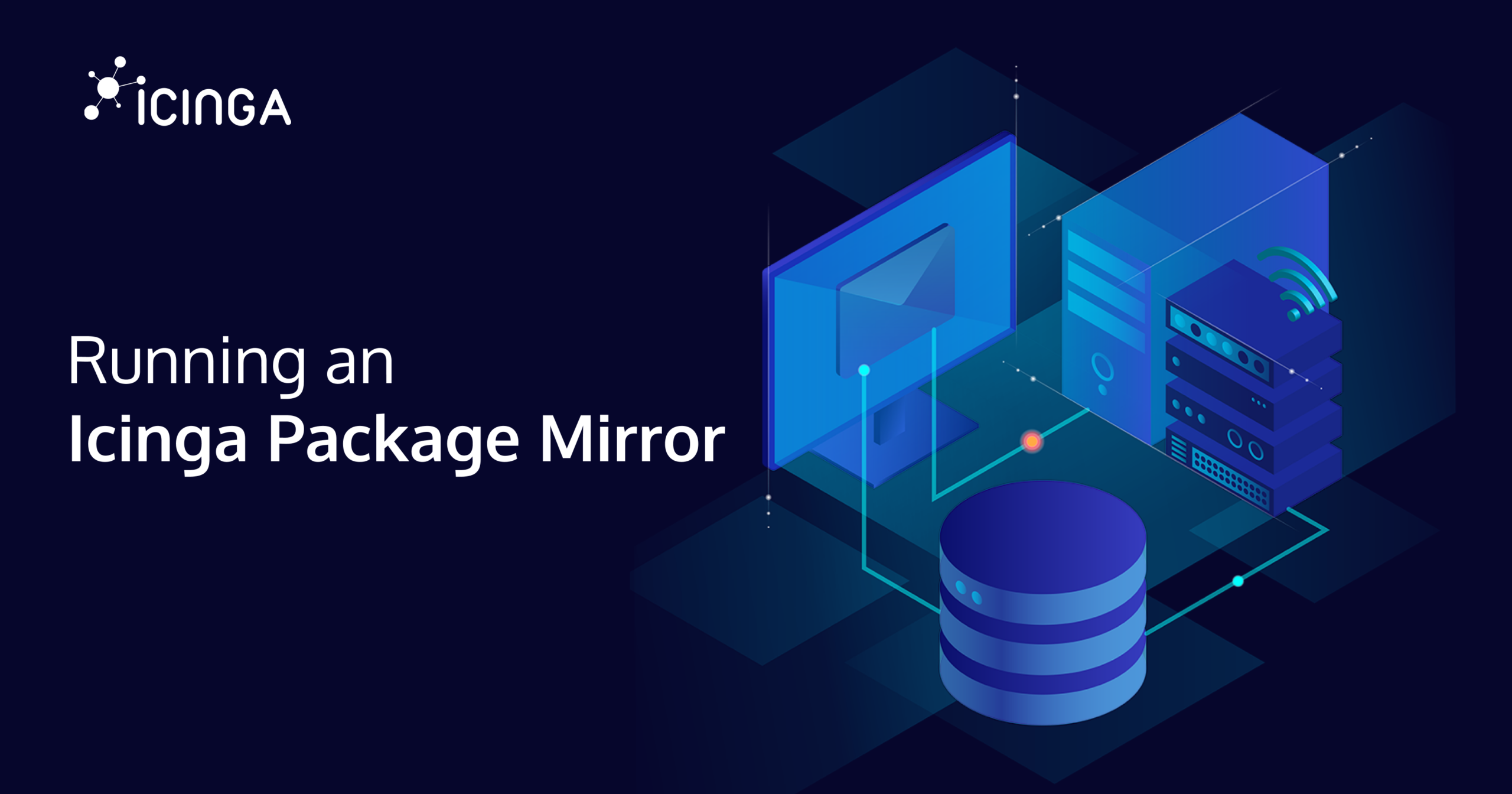
When hosting in a secure or corporate environment, Internet access is often restricted or blocked completely. While this makes sense from a security point of view, this introduces some challenges. For one, getting software packages.
There are usually two approaches to the package problem in such an environment: Either allow a certain package mirror in the firewall, or run your own mirror within the restricted environment with access to another package server to mirror packages from.
In this post, an exemplary package mirror for the Icinga Packages is set up and used to install packages from. When trying to reproduce this setup, please take a moment to consider what works for you and where your mileage differs.
Mirroring the Packages
Without further ado, let’s start. I am going to use a Debian 13 machine for demonstration purposes.
First, a user will be added to mirror the packages.
# useradd -c "Icinga Mirror User" -d /home/icinga-mirror -G www-data -m -U icinga-mirror
# chgrp www-data /home/icinga-mirror
# chmod 0750 /home/icinga-mirror
The usual way to retrieve Icinga Packages is via HTTPS from https://packages.icinga.com/. But there is also an rsync daemon running, allowing an incremental fetch of only missing files.
# apt-get install rsync
After switching to this user via sudo or su, let’s test the rsync connection.
$ rsync packages.icinga.com::packages
drwxr-xr-x 4,096 2026/02/18 11:15:01 .
-rw-rw-r-- 188 2025/06/11 13:20:35 402.php
-rw-r--r-- 660 2024/10/02 14:57:26 HEADER.html
-rw-r--r-- 1,180 2024/04/16 11:28:24 README.html
-rw-r--r-- 451 2021/12/13 12:59:58 favicon.ico
-rw-r--r-- 1,660 2024/09/30 14:31:10 icinga.key
-rw-rw-r-- 1,660 2024/09/04 11:44:00 icinga2024.key
drwxr-xr-x 4,096 2026/03/18 09:10:04 IcingaForWindows
drwxrwxr-x 4,096 2024/09/04 09:10:08 Raspberry_Pi_OS
drwxrwxr-x 4,096 2026/02/20 16:15:01 build-dependencies
drwxrwxr-x 4,096 2024/05/16 11:07:38 centos
drwxrwxr-x 4,096 2024/08/23 07:38:48 debian
drwxrwxr-x 4,096 2025/10/10 16:05:47 fedora
drwxrwxr-x 4,096 2025/10/07 14:51:55 openSUSE
drwxr-xr-x 4,096 2024/06/10 09:20:47 raspbian
drwxrwxr-x 4,096 2024/06/21 12:59:39 res
drwxrwxr-x 4,096 2024/08/23 07:38:48 ubuntu
drwxr-xr-x 20,480 2026/03/13 22:05:01 windows
Personally, I don’t want to mirror everything, but only care about Debian packages. Thus, I am creating an allow list of paths to access and start an initial rsync run manually.
$ cat filter
/debian

$ rsync -razv --files-from=filter packages.icinga.com::packages packages
[ . . . ]
This initial rsync run might take a while. Afterwards, I have ended up with 122G in the packages directory.
There is one thing left to synchronize: The signing key. As the rsync protocol has no transport encryption, I would recommend synchronizing the key via HTTPS, for example with wget. This way, the signing key was verified via TLS, which itself verifies all packages transferred via rsync.
$ wget -O packages/icinga.key https://packages.icinga.com/icinga.key
[ . . . ]
Keeping the Mirror in sync
After this initial manual fetch, I would recommend nightly synchronizations. We can create a systemd unit and timer to do so.
# cat /etc/systemd/system/icinga-mirror-rsync.service
[Unit]
Description=Sync Icinga Packages
After=network-online.target
Wants=network-online.target

[Service]
Type=oneshot
User=icinga-mirror
Group=icinga-mirror

NoNewPrivileges=yes
PrivateTmp=yes
ProtectSystem=full
ReadOnlyPaths=/
ReadWritePaths=/home/icinga-mirror/packages
RestrictAddressFamilies=AF_INET AF_INET6
ExecStartPre=/usr/bin/wget -q -O /home/icinga-mirror/packages/icinga.key https://packages.icinga.com/icinga.key
ExecStart=/usr/bin/rsync -raz --files-from=/home/icinga-mirror/filter packages.icinga.com::packages /home/icinga-mirror/packages
# cat /etc/systemd/system/icinga-mirror-rsync.timer
[Unit]
Description=Nightly Icinga Package Sync

[Timer]
OnCalendar=*-*-* 03:14:15
RandomizedDelaySec=1h
Unit=icinga-mirror-rsync.service

[Install]
WantedBy=timers.target
# systemctl daemon-reload
# systemctl enable --now icinga-mirror-rsync.timer
Serving the Mirror
There are multiple ways how to provide packages. In this case, I will choose the simplest one: an HTTP server. To be precise, nginx.
# apt-get install nginx
A minimal server configuration will be used to serve files. You might want to consider adding HTTPS for transport encryption within your network, depending on your needs. For guidance on monitoring the nginx instance itself, see our post on monitoring nginx web servers.
# cat /etc/nginx/sites-enabled/default
server {
        listen 80 default_server;
        listen [::]:80 default_server;

        server_name _;

        root /home/icinga-mirror/packages;

        location / {
                autoindex on;
        }
}
# systemctl restart nginx
Using the Mirror
From another Debian machine within our restricted network, an Icinga installation can be performed now. Therefore, the official installation steps are slightly altered. Our mirror will be reachable under http://mirror.internal/.
# wget -O /usr/share/keyrings/icinga-archive-keyring.gpg http://mirror.internal/icinga.key
# DIST=$(awk -F"[)(]+" '/VERSION=/ {print $2}' /etc/os-release); \
 echo "deb [signed-by=/usr/share/keyrings/icinga-archive-keyring.gpg] http://mirror.internal/debian icinga-${DIST} main" > \
 /etc/apt/sources.list.d/${DIST}-icinga.list
 echo "deb-src [signed-by=/usr/share/keyrings/icinga-archive-keyring.gpg] http://mirror.internal/debian icinga-${DIST} main" >> \
 /etc/apt/sources.list.d/${DIST}-icinga.list

# apt-get update
[ . . . ]
# apt-get install icinga2
Now, Icinga 2 can be used. Either for monitoring or, e.g., to play hangman.
# icinga2 console
Icinga 2 (version: r2.15.2-1)
Type $help to view available commands.
<1> => include <hangman>
null
<2> => hm.init ("ICINGA")
null
<3> => hm.guess ("I")
information/config: I _ I _ _ _
information/config: 0/7 errors made:
null
<4> => hm.guess ("O")
information/config: I _ I _ _ _
information/config: 1/7 errors made: O
null
<5> => hm.hint (1)
information/config: I _ I _ _ A
information/config: 1/7 errors made: O
null
[ . . . ]