Usage
This chapter describes the views of Icinga Notifications Web. They are primarily designed for administrators: to set up the configuration and to analyze why someone was notified, when and through which channel. For day-to-day incident management, use the web integration of your source, e.g. Icinga DB Web. See Access Control for the reasoning behind this.
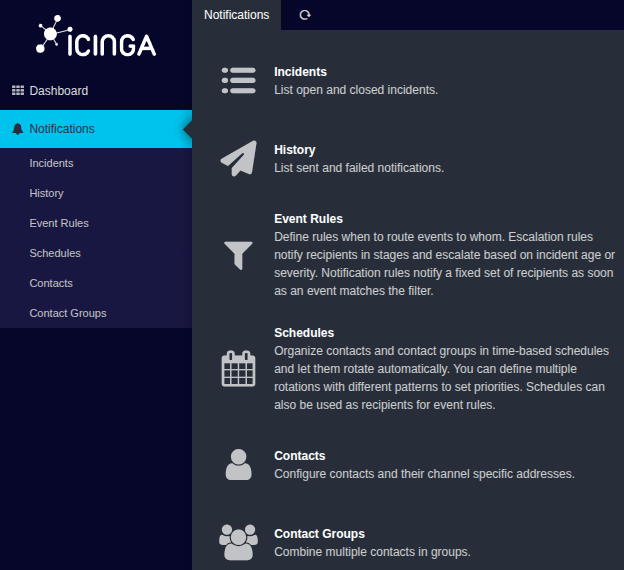
The menu section Notifications. Which of them you see depends on your permissions.
Channels, sources and the database connection are configured in Configuration → Modules → notifications instead.
See Configuration.
Incidents
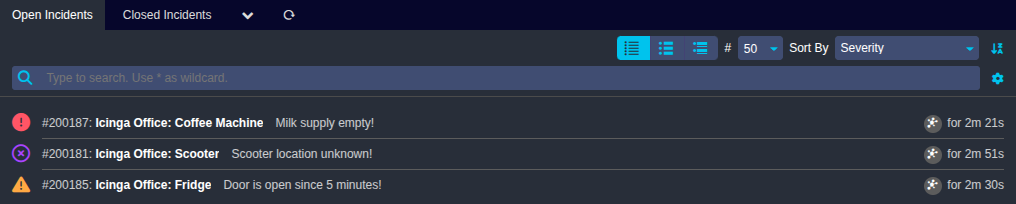
Notifications → Incidents has two tabs: Open Incidents and Closed Incidents. Both lists can be searched,
filtered and sorted, for example by severity, opening time or recovery time.
Each entry shows the summary of the incident. An incident can relate to multiple sources. The list shows the icons of all related source types. Hover over an icon to see the name of the source. If an incident is muted, a mute icon is shown. Hover over it to see the reason.
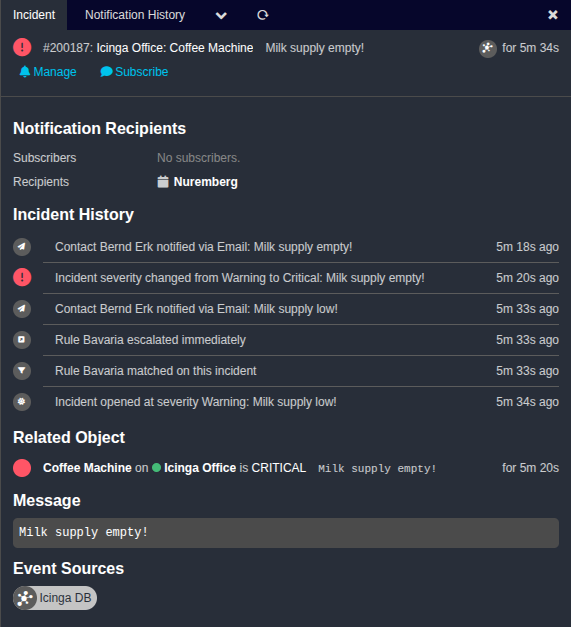
Click on an incident to open its detail view. It shows:
- The related object and the incident’s message
- The notification recipients. Recipients are the contacts, contact groups and schedules that are notified due to event rules. Subscribers are users who subscribed to the incident and are listed separately.
- The incident history, e.g. severity changes, notified contacts, changes of the manager and subscribers, and matched event rules. When an escalation is reached, the history describes its condition.
- The event sources the incident relates to
The tab Notification History of an incident lists all notifications sent for it.
Quick Actions
The detail view offers the actions Manage and Subscribe for the user who is logged in. They are processed
asynchronously by the Icinga Notifications daemon. While a request is pending, its button is disabled.
- An incident has at most one manager.
Manageis only offered if the incident has no manager yet. Otherwise,Unmanageis offered, which demotes the current manager to subscriber. Unsubscribeis offered if you are subscribed.
Quick actions are associated with a user via the field Icinga Web User of a contact.
Note
As the day-to-day incident management happens in the web integration of the source, you will usually use these actions there.
Notification History
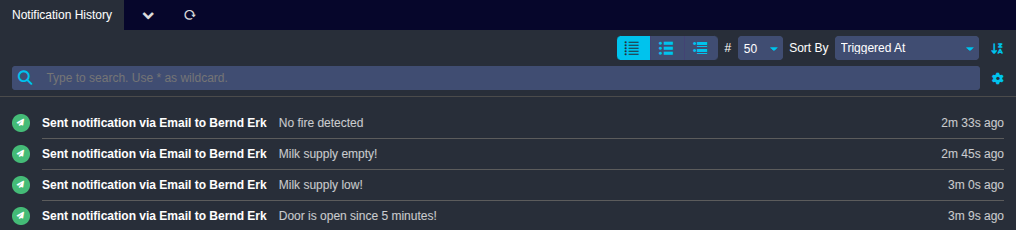
Notifications → History lists the notifications that Icinga Notifications sent or failed to send. Use it to find out
why someone was or was not notified. The list can be searched, filtered and sorted by the time a notification was
triggered or by its state.
Each entry shows whether the notification was sent or failed, the channel and the contact. If the contact was notified as a member of a contact group or schedule, this is shown as well. The detail view of a notification shows the message, the recipient, the channel and details of the transmission.
Event Rules
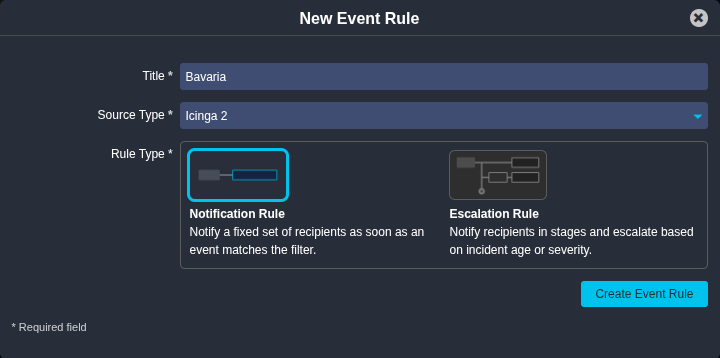
Event rules define when events are routed to whom. You find them in Notifications → Event Rules. An event rule has
a Title, a Source Type and a Rule Type.
There are two rule types:
| Rule type | Description |
|---|---|
| Escalation Rule | Notify recipients in stages and escalate based on incident age or severity. Tied to an incident. |
| Notification Rule | Notify a fixed set of recipients as soon as an event matches the filter. Independent of incidents. |
The source type can be chosen from the types of the configured sources. The rule applies to all sources of that type. A rule is not bound to an individual source.
Filter
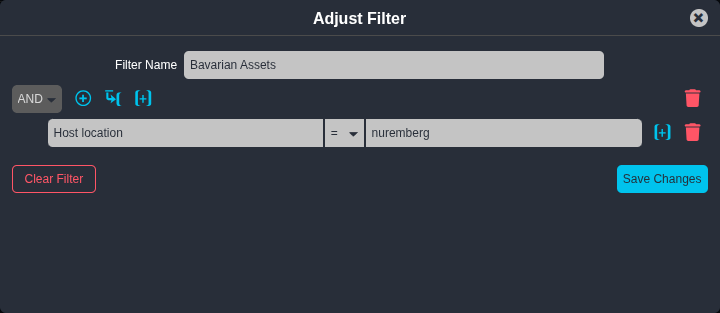
The filter decides which events or objects a rule applies to. Use the Filter Name field to give the filter a
descriptive name. The daemon evaluates the filter.
For sources maintained by an integration, the filter editor suggests columns and values and validates the filter. For other sources, you get a plain filter editor without suggestions. Make sure the columns are valid JSON paths. Refer to the documentation of the source for the available columns.
If the rule has been created with an integration which is not available anymore, the filter cannot be edited. Make sure the module that provides it is enabled and that you are allowed to use it.
Escalations
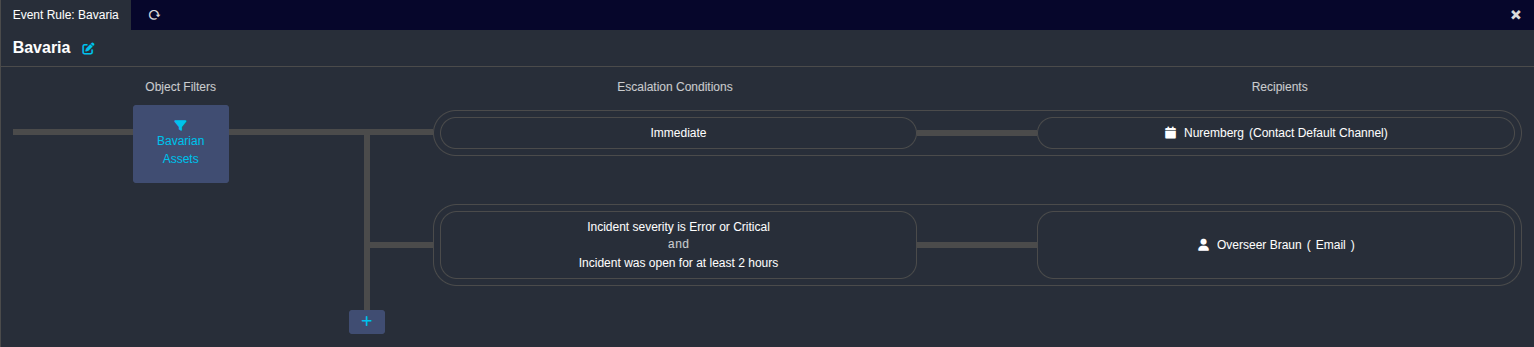
An escalation rule consists of one or more escalations. The first one is delivered immediately. All following ones
need a Condition. Add a condition with Add Condition and choose from:
| Condition | Description |
|---|---|
| Incident Severity | The severity of the incident, e.g. critical or worse. |
| Incident Age | The time since the incident was opened, in hours, minutes or seconds. |
| Incident Is Managed | Whether the incident has an assigned manager. |
Escalations open in a modal. If you combine conditions that can never be met, a warning tells you that the escalation will never match any incident.
Notification Rules

A notification rule has one set of recipients. Instead of a condition, you choose the Event Types that trigger it.
For sources maintained by an integration, the available types are suggested. Otherwise, make sure the types are
valid. Refer to the documentation of the source.
Recipients

For each escalation or notification rule, add recipients with Add Recipients. A recipient is a contact, contact group
or schedule. For each of them, you choose a channel. The default is Contact Default Channel, i.e. the default
channel of the contact.
Duplicating
Use Duplicate Event Rule to create a copy of a rule, for example to apply the same rule to another source type.
If you change the source type while duplicating, the filter is reset.
Schedules
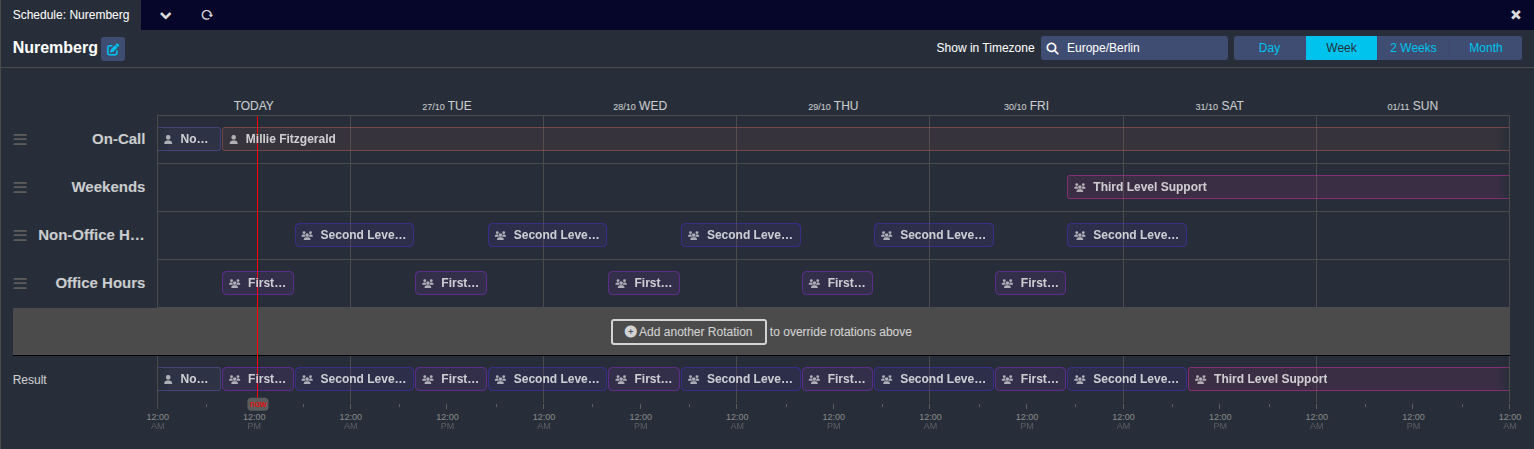
Notifications → Schedules organizes contacts and contact groups in time-based schedules and lets them rotate
automatically. Schedules can also be used as recipients of event rules.
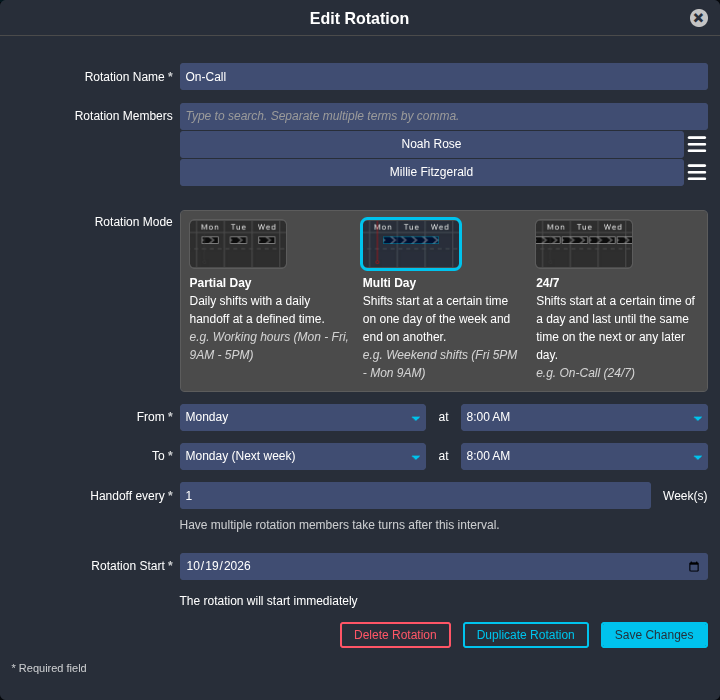
A schedule has a Schedule Name and a Schedule Timezone. A schedule contains rotations. You can define multiple
rotations with different patterns to set priorities. For each rotation you set a Rotation Name, the Rotation Members
and a Rotation Start. Members can take turns after a configurable handoff interval.
Use Duplicate Schedule to create a copy of a schedule. Rotations can be duplicated as well.
Contacts
Notifications → Contacts lists the people to notify. For each contact, configure:
| Field | Description |
|---|---|
| Contact Name | The name of the contact. |
| Icinga Web User | Associates actions in the UI, such as incident management, with this contact. Required for desktop notifications. |
| Default Channel | The channel used if an event rule does not specify one. |
| Channels | The address for each channel the contact can be notified through. |
Contact Groups
Notifications → Contact Groups combines multiple contacts in groups. A contact group has a Name and Members.
Use Duplicate Contact Group to create a copy.
Contact groups can be used as recipients of event rules and as members of schedules.