Working with Apply for rules - tcp ports example
This example walks you through using an Apply For rule to spin up services
automatically, using open TCP ports as the example.
Apply Foralso works with the newer Custom Variables of typedynamic-arrayanddynamic-dictionary, which is the recommended way to go since it also supports iterating over dictionaries. See Apply For with Custom Variables below. The walk-through that follows still uses the deprecatedData fields.
First, define a tcp_ports data field of type Array and assign it to a Host Template.
See Working with fields if you need a refresher on
setting up a data field. You’ll also need a tcp_port data field of type String, which we’ll
associate with a Service Template later.
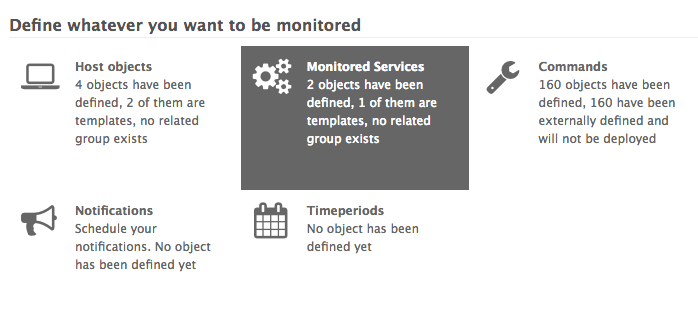
Then, please go to the Dashboard and choose the Monitored services dashlet:
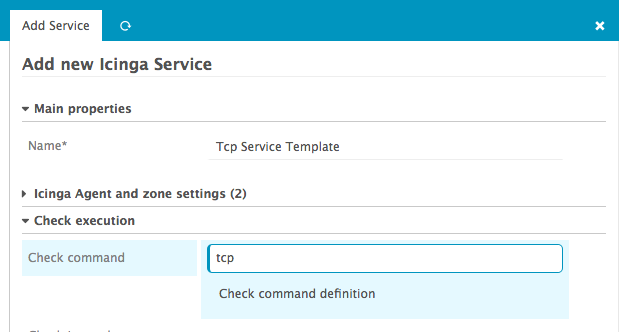
Then create a new Service template with check command tcp:
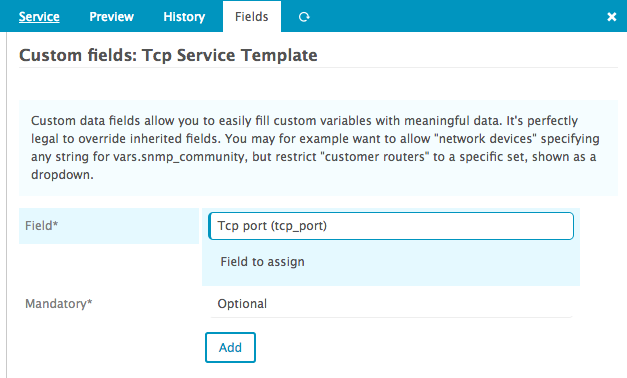
Then associate the data field tcp_port to this Service template:
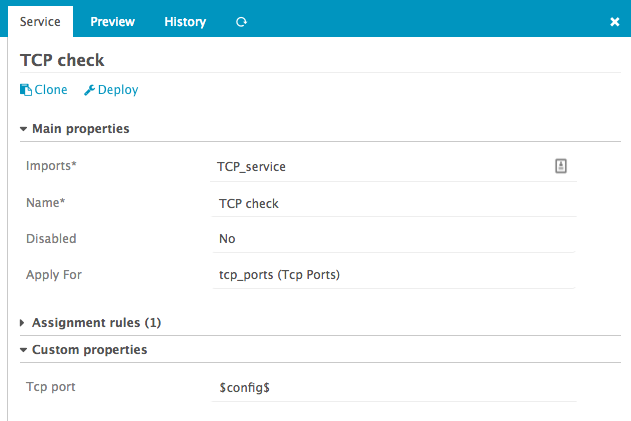
Then create a new apply-rule for the Service template:

Now set the Apply For property to the tcp_ports field you defined earlier on the host template.
An Apply For rule exposes a variable named value, usable as $value$, which corresponds to
whichever array item is currently being iterated over.
Set the Tcp port property to $value$:
(Side note: if you can’t see your tcp_ports property in Apply For dropdown, try to create one
host with a non-empty tcp_ports value.)
That’s it. Every host that defines a tcp_ports variable will now get the Tcp Check service
assigned automatically.
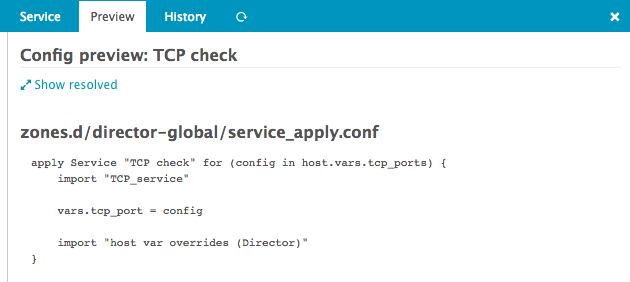
Take a look at the config preview to see how the Apply For services will render once deployed:
Apply For with Custom Variables
The Custom Variables system offers the same Apply For
mechanism, but isn’t limited to flat arrays. A dynamic-array custom variable behaves just like
the tcp_ports example above, while a dynamic-dictionary custom variable also gives you the
dictionary key of each iterated entry, plus direct access to its sub-dictionary fields.
Only dynamic-array and dynamic-dictionary custom variables that are attached to a Host
Template show up in the Apply For dropdown of a service apply rule.
Example: Apply For over a dynamic-array
Scenario: a host has a dynamic-array custom variable http_vhosts_list listing virtual host
addresses to probe. A service apply rule creates one HTTP check per entry.
- Under
Custom Variables, create a propertyhttp_vhosts_listof typeDynamic Arraywith item typeString. - On the
Host Template, open theCustom Variablestab and addhttp_vhosts_list. - On a host importing that template, fill in the values:
vars.http_vhosts_list = [
    "www.example.com",
    "api.example.com",
    "status.example.com"
]
- Create a
Service Templatenamedhttp-templatewithcheck_command = http, and its own custom variablehttp_address(typeString). - Create an
Apply Ruleimportinghttp-template, setApply Fortohttp_vhosts_list, and the assign filter tohost.vars.http_vhosts_list. Leave the service name andhttp_addressat their defaults for now.
Right after creating it, before setting a name pattern or filling in http_address, the Preview
tab shows a plain, literal name inline on the apply Service line, no separate name line, and
nothing between assign where and import DirectorOverrideTemplate:
apply Service "http-check" for (value in host.vars.http_vhosts_list) {

    vars.__director_overriddenVar = "http-check"
    import "http-template"

    assign where host.vars.http_vhosts_list == 1

    import DirectorOverrideTemplate
}
- Now set the service name pattern to
http - $value$andhttp_addressto$value$.
Because the name pattern contains a $value$ macro, Icinga Director cannot render it as a
literal, inline service name anymore. It renders it as a computed name expression instead, right
after the for (...) clause. check_command still isn’t repeated here, it comes from the
imported http-template:
apply Service for (value in host.vars.http_vhosts_list) {
    name = "http - " + value

    vars.__director_overriddenVar = "http - \$value\$"
    import "http-template"

    assign where host.vars.http_vhosts_list == 1
    vars.http_address = value

    import DirectorOverrideTemplate
}
import DirectorOverrideTemplate is appended to every Apply Rule, Custom Variable based or not,
it’s what makes the optional “Override vars for inherited/applied Services” feature (see
REST API) work at all. vars.__director_overriddenVar is the Custom-Variable-specific part
of that same mechanism: since the rendered service name varies with each iteration, Director keeps
the original, un-evaluated name pattern around in this variable so that template can still look up
per-iteration overrides by name. It’s added to every Apply For rule bound to a Custom Variable,
whether or not its name pattern contains a macro. You can ignore both if you don’t use per-service
overrides.
Three services are created on that host: http - www.example.com, http - api.example.com and
http - status.example.com.
Example: Apply For over a dynamic-dictionary
Scenario: a host has a dynamic-dictionary custom variable disk_checks, where each key is a
disk label and the value is a structured sub-dictionary with threshold fields. A service apply rule
creates one disk check per entry.
- Under
Custom Variables, create a propertydisk_checksof typeDynamic Dictionary. On its detail page, add the sub-dictionary fieldsdisk_partition,disk_wfreeanddisk_cfree(typeString). - Attach
disk_checksto theHost Template‘sCustom Variablestab. - On the host (or, thanks to dictionary merging, spread across several imported templates), fill in the entries:
vars.disk_checks += {
    "root" = {
        disk_partition = "/"
        disk_wfree     = "20%"
        disk_cfree     = "10%"
    }
    "data" = {
        disk_partition = "/data"
        disk_wfree     = "15%"
        disk_cfree     = "5%"
    }
}
- Create a
Service Templatenameddisk-templatewithcheck_command = diskand custom variablesdisk_partitions,disk_wfree,disk_cfree(typeString). - Create an
Apply Ruleimportingdisk-template, setApply Fortodisk_checks, and the assign filter tohost.vars.disk_checks. Leave the service name and the custom variables below at their defaults for now.
Just like in the array example above, the plain, just-created rule renders with a literal name
inline, no name line, and nothing between assign where and import DirectorOverrideTemplate:
apply Service "disk-check" for (key => value in host.vars.disk_checks) {

    vars.__director_overriddenVar = "disk-check"
    import "disk-template"

    assign where host.vars.disk_checks == 1

    import DirectorOverrideTemplate
}
- Now set the service name pattern to
disk - $key$, and the custom variables to:
| Variable | Value |
|---|---|
disk_partitions |
$value.disk_partition$ |
disk_wfree |
$value.disk_wfree$ |
disk_cfree |
$value.disk_cfree$ |
The Apply For page shows a hint listing all $value.<field>$ (or $value["field-name"]$ for
field names that aren’t valid identifiers) expressions available for the selected dictionary.
Field names containing a quote, backslash, or dollar sign aren’t supported in
$value["field-name"]$interpolation. They aren’t escaped, and can produce invalid or unexpected config. Avoid those characters in field names used this way.
The $key$ macro in the name pattern now forces Icinga Director to render name as a separate
computed expression rather than an inline string; check_command still comes from the imported
disk-template rather than being repeated on the apply rule. Custom variables render in
alphabetical order by name, not the order you entered them in:
apply Service for (key => value in host.vars.disk_checks) {
    name = "disk - " + key

    vars.__director_overriddenVar = "disk - \$key\$"
    import "disk-template"

    assign where host.vars.disk_checks == 1
    vars.disk_cfree = value.disk_cfree
    vars.disk_partitions = value.disk_partition
    vars.disk_wfree = value.disk_wfree

    import DirectorOverrideTemplate
}
Two services are created: disk - root (checking /) and disk - data (checking /data).
Because disk_checks is merged with += across the inheritance chain, further disk entries can be
added on a child template or on the host itself without losing entries defined further up the
template tree.